Connect Smartlead to Outreach Magic
Webhook setup guide for unified email + LinkedIn outreach analytics
Integrating Smartlead with Outreach Magic lets you sync email outreach events (sends, opens, clicks, replies, bounces, category changes, etc.) into one unified timeline. This creates a complete cross-channel view alongside LinkedIn events.
Follow this guide to send all Smartlead events into Outreach Magic.
- Real-time analytics and reporting
- Attribution clarity across channels
- Multichannel reporting in a single dashboard
- Unified timeline view of all outreach activities
Webhook
https://webhooks.outreachmagic.io/smartlead?token={{YOUR_TOKEN}}Get your token from the Smartlead integrations page in Outreach Magic.
Smartlead Webhook Setup (Outreach Magic Integration)
Follow these step-by-step instructions to connect Smartlead to Outreach Magic via webhook.
- 1
Navigate to the Outreach Magic Integrations Page
Go to: https://app.outreachmagic.io/integrations/
Click "Integrations."
- 2
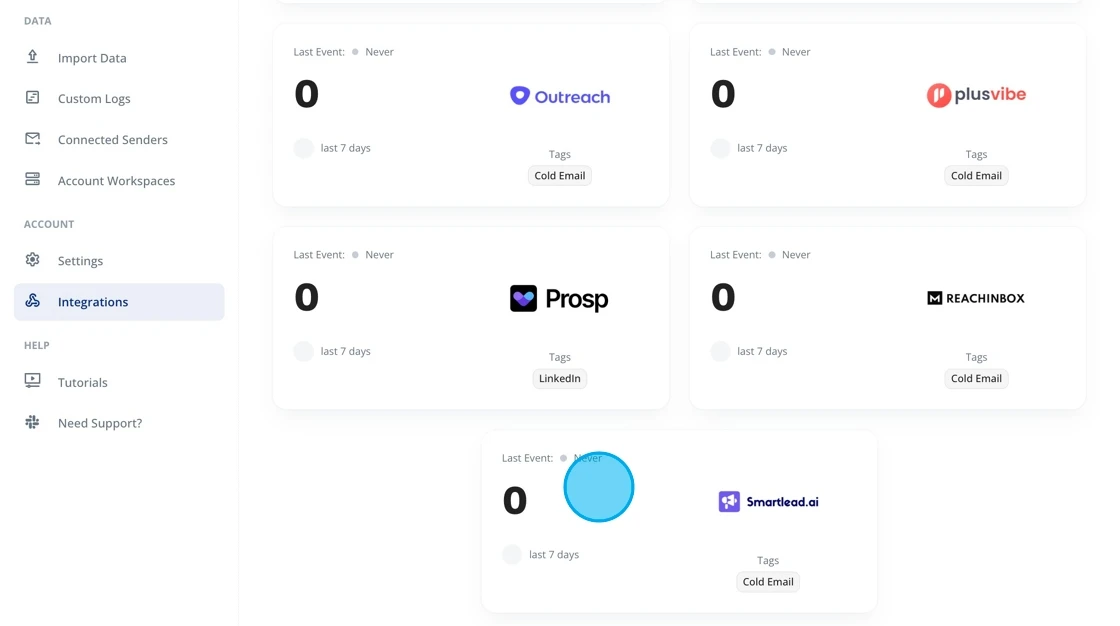
Select the Smartlead Integration
Open the integrations section and click Smartlead.
- 3
Click "Copy Webhook URL"
Copy your unique Outreach Magic webhook endpoint. This URL is specific to your account and will be used to receive events from Smartlead.
Keep this webhook URL secure. It's unique to your Outreach Magic account and will be used to authenticate incoming events from Smartlead.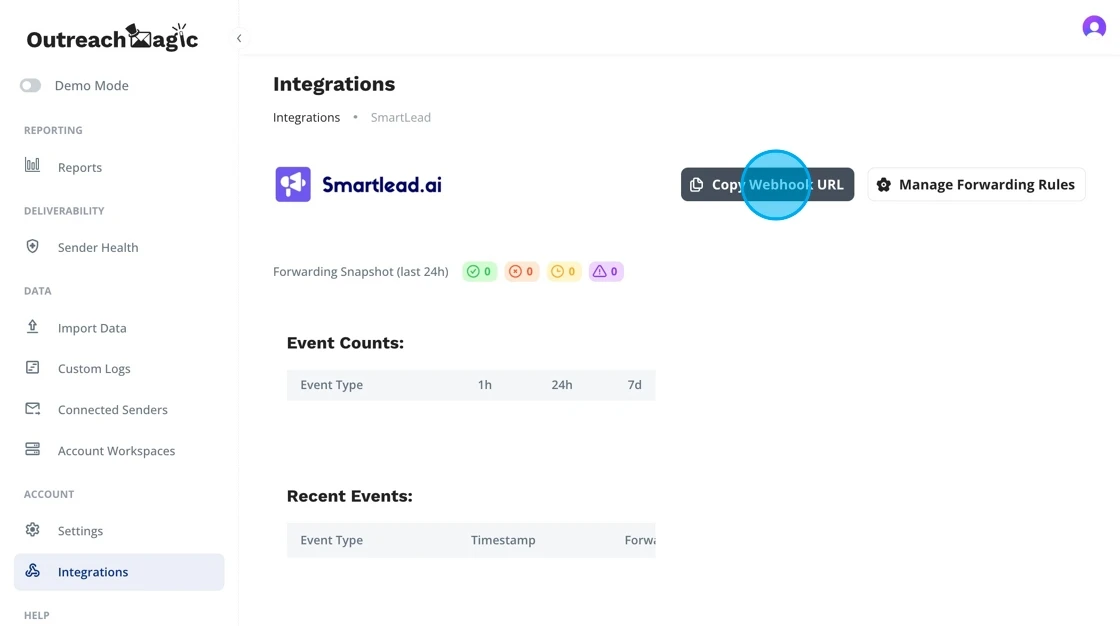
- 4
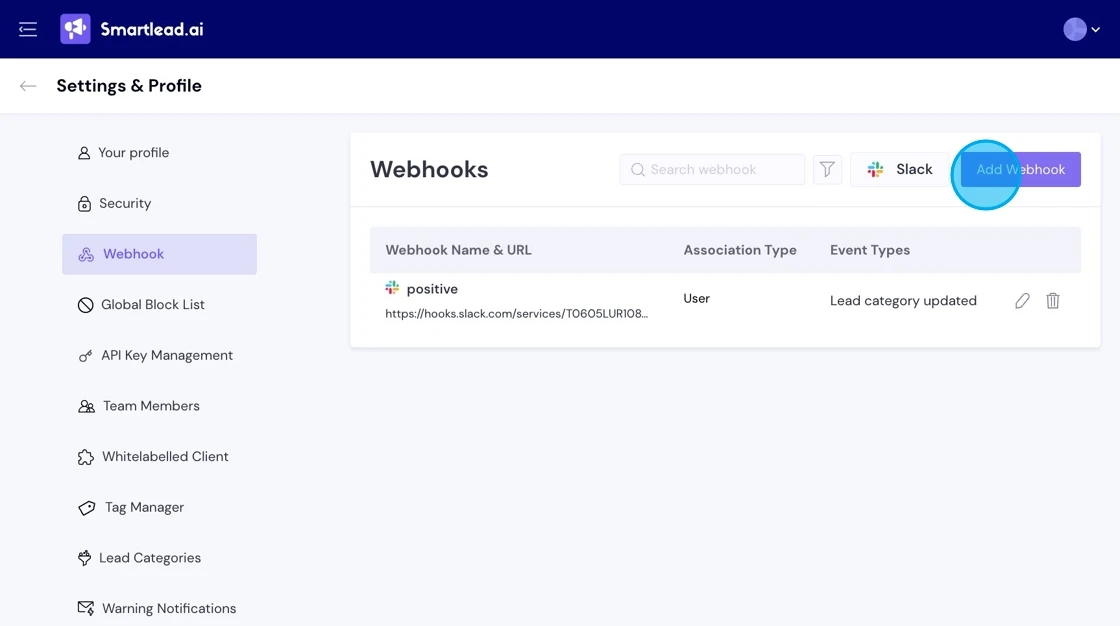
In Smartlead, Click "Add Webhook"
Add a new webhook to route Smartlead events into Outreach Magic.
- 5
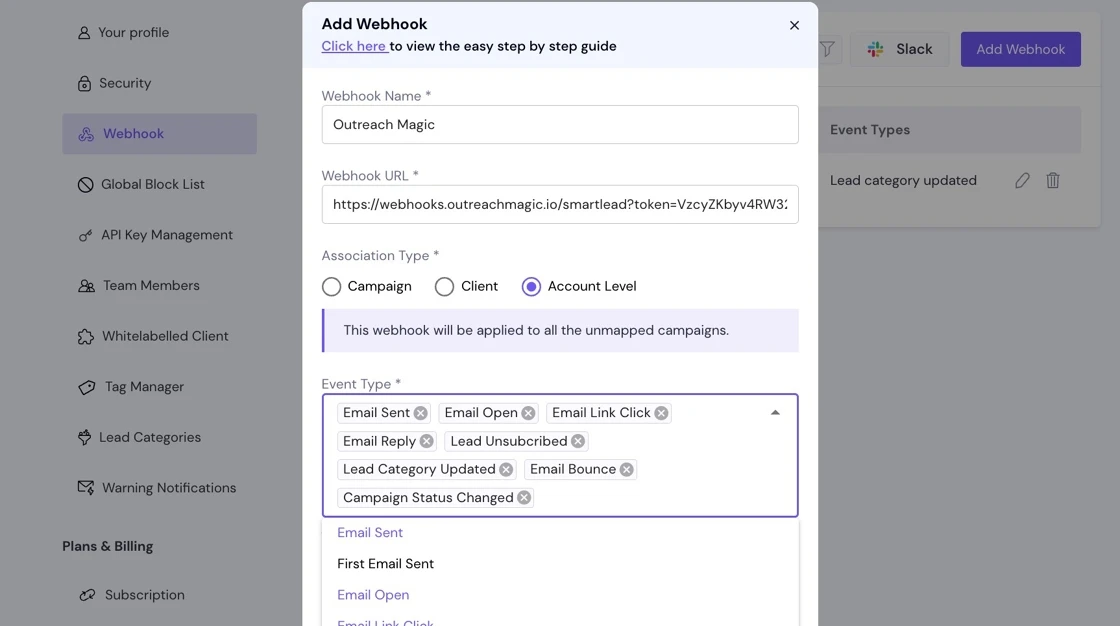
Name the Webhook, Paste the URL & Select Required Events
Name your webhook: "Outreach Magic"
Paste the webhook URL.
Select the following Smartlead events:Selected (Required for full reporting):
- • Email Sent
- • Email Open
- • Email Link Click
- • Email Reply
- • Lead Unsubscribed
- • Lead Category Updated
- • Email Bounce
- • Campaign Status Changed
Not Selected:
- • First Email Sent
- • Untracked Replies
- 6
Add ALL Lead Category Events
Smartlead separates lead category events, so you must enable all of them:
Selected:
- • Select every lead category event
Not Selected:
- • None (all should be selected)
Important: Make sure to select all lead category events to ensure complete tracking of category changes in Outreach Magic.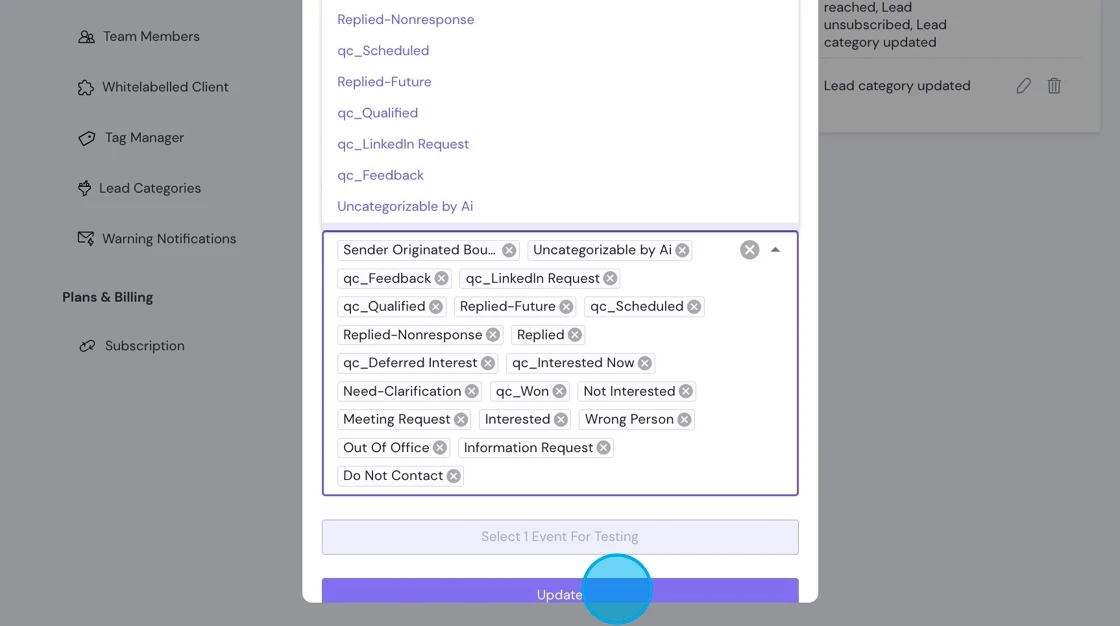
- 7
Review Incoming Webhooks in Outreach Magic
Return to the Outreach Magic integrations page to verify that events are flowing in real-time.
This is useful for troubleshooting and validating webhook delivery.
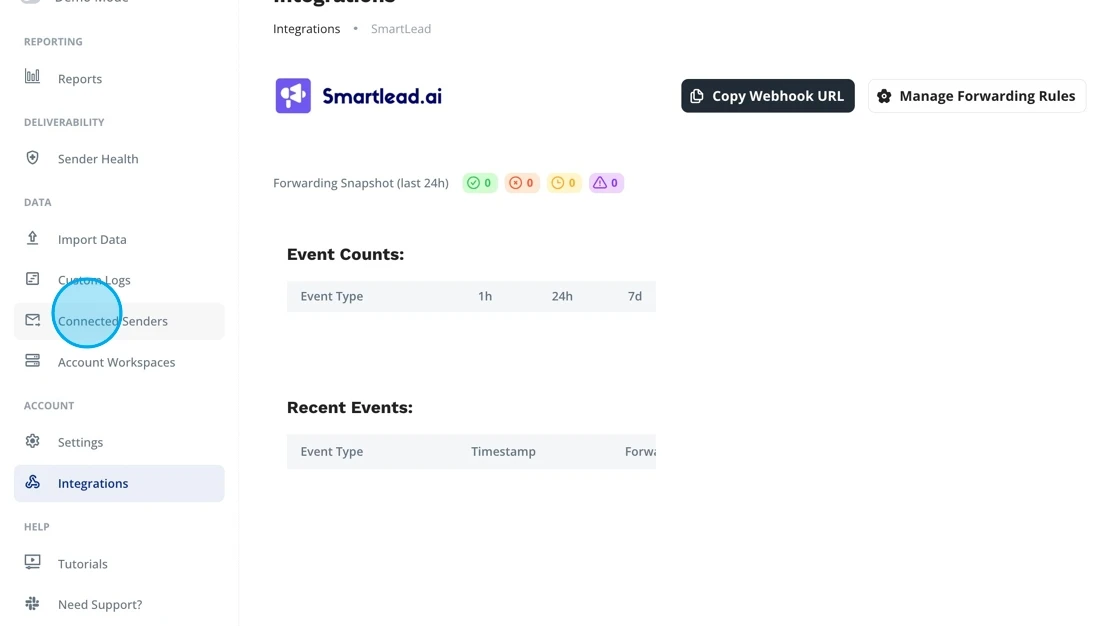 Connection Active! Your webhook is now configured. Smartlead events will automatically sync to Outreach Magic for unified reporting.
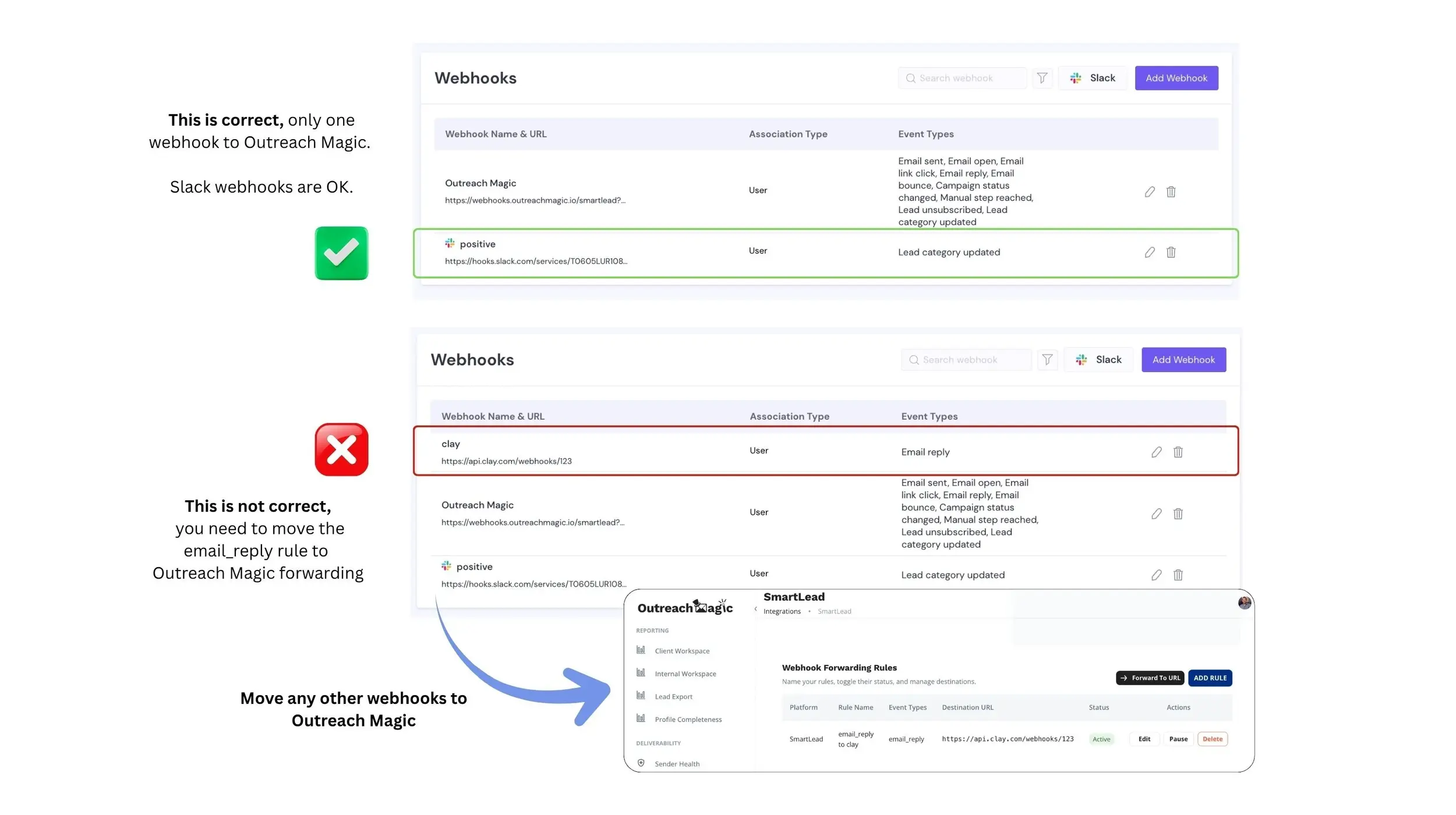
Smartlead only allows ONE webhook per event.
If you previously used a webhook for custom workflows, you can use webhook forwarding in Outreach Magic to forward the exact events you receive to your other endpoints.
This does not affect Slack webhooks—you can still use multiple Slack endpoints.
Webhook Forwarding Rules
Since Smartlead only allows one webhook per event, Outreach Magic provides webhook forwarding to send the exact events you receive to additional endpoints. This works for any platform integration (Smartlead, Instantly, etc.).
How Webhook Forwarding Works
When Outreach Magic receives a webhook event from Smartlead, we forward the exact same payload to any additional endpoints you configure. This means:
- • No data transformation: We forward exactly what we receive from Smartlead
- • Real-time delivery: Events are forwarded immediately upon receipt
- • Multiple endpoints: You can forward to multiple destinations (Zapier, Make, custom APIs, etc.)
- • Success tracking: Monitor delivery status for each forwarded webhook
Setting Up Forwarding Rules
- 1.Navigate to the Smartlead integrations page in Outreach Magic
- 2.Click "Add Forwarding Rule" or "Configure Forwarding"
- 3.Enter your destination webhook URL (e.g., Zapier webhook, Make scenario, custom API endpoint)
- 4.Optionally configure filters to forward only specific event types
- 5.Save the rule—events will start forwarding automatically
Example of a Completed Smartlead Webhook Configuration
Your setup should look similar to this:
What Happens Next
Automatic Data Sync
Once configured, Smartlead will automatically send events to Outreach Magic in real-time. No manual CSV exports or merges needed.
Unified Timeline
Your email outreach from Smartlead will appear alongside LinkedIn activities in a single, unified timeline in Outreach Magic.
Real-Time Analytics
Access real-time analytics, deliverability diagnostics, and multichannel reporting as events flow into Outreach Magic.
Attribution Clarity
Get clear attribution across email and LinkedIn channels, helping you understand which channels drive the best results.
Troubleshooting
Events Not Appearing in Outreach Magic
- • Verify the webhook URL was copied correctly (no extra spaces or characters)
- • Check that all required events are selected in Smartlead
- • Ensure all lead category events are enabled
- • Verify the webhook is active in Smartlead's webhook settings
- • Wait a few minutes for events to sync (there may be a slight delay)
Webhook URL Not Working
- • Make sure you're using the webhook URL from your Outreach Magic integrations page
- • Verify the URL starts with
https:// - • Try copying the webhook URL again from Outreach Magic
- • Check that your Outreach Magic account is active
Missing Events or Incomplete Data
- • Check for forwarding rules: If there are any forwarding rules set up in Smartlead besides Outreach Magic and Slack notifications, events will be blocked from Outreach Magic. If you need to forward events elsewhere, use Outreach Magic's forwarding rules instead.
- • Ensure you've selected all required events (Email Sent, Open, Click, Reply, etc.)
- • Make sure all lead category events are enabled
- • Check that the webhook is configured for all campaigns you want to track
- • Verify events are being sent from Smartlead by checking the webhook logs
Need Additional Help?
If you're still experiencing issues, reach out to our support team or check the Outreach Magic integrations page for additional resources.
Contact SupportRelated Resources
- PlusVibe vs Smartlead Comparison
Compare Smartlead's webhook structure with PlusVibe and learn about webhook limitations
- PlusVibe Integration Guide
See how other email platforms integrate with Outreach Magic
- Instantly Integration Guide
Learn how to integrate Instantly AI with Outreach Magic
Ready to Connect Smartlead?
Set up your webhook integration and start unifying your email + LinkedIn outreach analytics.